

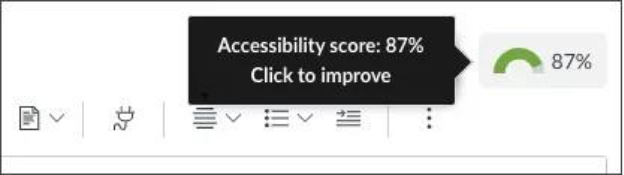
Ally provides you with feedback while working in the rich content editor. You will see an Ally score indicator that updates in real-time as you change your content. Select the score to learn more about the issues and follow step-by-step guidance on how to fix them.
How do I use the Ally score on my RCE content?
Create or edit a Page, Announcement, Assignment, Discussion topic, or Quiz. The Ally score appears on the right above the rich content editor (RCE) toolbar. As you type or make changes, the Ally score updates immediately. Scores range from Low to Perfect. The higher the score, the fewer the issues.
Once you know the accessibility score, you can begin to explore the accessibility issues and improve your content to raise the score.
Select the Accessibility score to open the feedback panel. Make quick fixes directly in the panel and preview window. Select All issues to see every issue in the file and decide what issues to fix first.
After you are done, close the Ally feedback panel and save the updated content in the RCE.
What accessibility guidance does Ally give for my RCE content?
Ally does the same checks on RCE content as the checks on attached HTML files. Results from the checks are reported in both the instructor Course accessibility report and the Ally Institution Report used by administrators. The only exception is quiz questions, both Classic and New. You can see a score and receive feedback while editing Classic quiz questions, but they do not appear in either of the reports.
Feedback and guidance on RCE content are not available for every issue yet. RCE guidance is available for these accessibility issues:
- Image without a description
- When adding images to RCE content, you must manually add its metadata —such as alternative text— to ensure its accessibility. Once alternative descriptions are directly added to images on the page, these will be retained when a course is copied.
- Image with redundant descriptions
- This is a situation where the surrounding text already provides the same information as the alt text. In cases like this, create alt text that is concise and non-repetitive, or mark the image as decorative.
Remediating Documents with the RCE
As you work on remediating your PDFs, PowerPoints, and Word docs, consider using the RCE to share the information in those files instead of creating a new version. Pages created using the RCE are already more accessible to screen-reader users. In addition, they are more adaptable to different devices and browsers, and you can edit them within Canvas. Now with Ally, you can make sure that information is being shared in a 100% accessible format.
Learn more about turning your documents into Canvas pages in our Document Remediation guide.