

Images are an easy way to add variety to your content, as well as assist students who learn better through visual examples. It may also be a necessary way to communicate some complex ideas to your students.
For students with visual impairments or disabilities, images should be accompanied by image descriptions, so that screen readers can be used. These descriptions should explain what the image is, and its relevance to the content in the course.
Ally will automatically check for image descriptions wherever there are images, including both image files and files that include images, such as PDFs or PowerPoints.
You can see suggestions for how to improve content with images by clicking on the Accessibility score indicator, to open the instructor feedback panel. This will provide you with steps to add descriptions to your images.

Adding Descriptions to Images
Once you have opened the feedback panel for an image with an issue, you’ll be prompted to enter a brief description. Simply input the description into the text field of the feedback panel, then click Add.
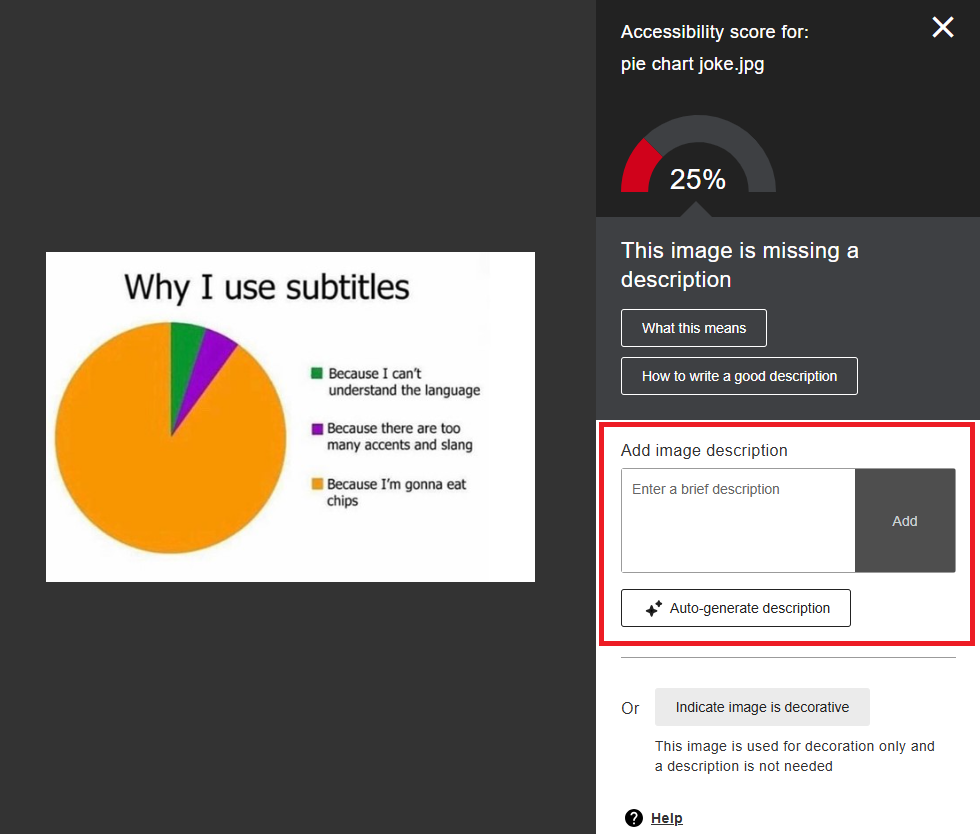
You can get assistance with composing image descriptions from Ally’s built-in AI assistant. Under the image description text box, click Auto-generate description. Ally will then process the image and provide a suggested description.
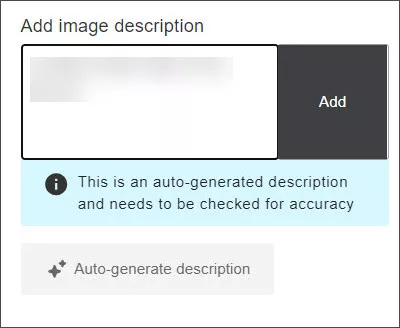
Be aware that you must review the suggested text. You can either edit the description or delete it to manually input your own.
If your image is only for visual effect, just click the Indicate image is decorative button at the bottom of the menu.
Adding Descriptions to Images Embedded in Word and PowerPoint Files
Once you have opened the feedback panel for a document with embedded images, you can navigate individual issues that Ally has highlighted. Ally will highlight every image that is missing a description in your document.
You can use the tools tab above the preview to quickly explore issues on your document.
If your file has images missing alternative descriptions, you will need to address them. How you add descriptions to your files will vary depending on the type.
For Microsoft Word and PowerPoint files, you can download the file directly from the feedback panel or locate the original on your computer. Ally provides you with instructions for how to add image descriptions based on the file type and the software you choose to edit with.
Follow the provided instructions to add in the missing image descriptions and then click Next in the feedback panel. Ally will prompt you to upload your edited file. Your original document will be replaced with the updated one and your score will update automatically.
Adding Descriptions to Images Embedded in PDF Files
Adding descriptions to images embedded in PDFs is almost impossible if you do not have the original, editable source document. Even if you do have the source document, it’s still recommended that you determine how necessary it is to continue its use as a PDF. Use the PDF Decision Tree provided by Digital Accessibility Services to see what your options are for remediating content currently shared via PDF.
Writing Good Descriptions
Follow these best practices when writing out your image descriptions:
- Describe the meaning and purpose of the image in the context that it is being used.
- Avoid saying “Image of” or “picture of” as screen readers will automatically identify the object as an image.
- Be concise and to the point; avoid overly descriptive wording.
- Alt text should be no longer than 125 characters, so write narratives for complex images like graphs, charts, and diagrams. Add a short description to identify the image and, where appropriate, indicate the location of the long description.
- Avoid images of text. If you can’t avoid it, copy the text into the alternative description.
- Say something new. Don’t repeat descriptions on the same page. Don’t repeat what is already said on the page.
- Identify images that don’t represent relevant content as decorative.
Learn more about Images and Alt Text.
Other Accessibility Issues with Images
Another common issue Ally will flag is contrast. Images need to have a high enough contrast in color to easily read any text and distinguish between elements. This is especially vital for students who may have low vision or color blindness and may have difficulty.
Ally doesn’t have any built-in instructions for fixing this issue, as it can be difficult to find the right tools easily available for such a task. You can prevent this error by selecting images that have high contrast for your materials. Use an online tool like Contrast Checker to determine if your image passes accessibility guidelines.