

Accessibility is a shared responsibility between all levels of the university. Ally is set up to provide support at the instructor level by assisting with the review and remediation of course content. It also provides administrators with information about documented efforts to improve course accessibility.
The Ally accessibility tool evaluates course content, including documents and images that are uploaded or imported to a Canvas course site. It then provides recommended steps to address content that does not comply with accessibility guidelines. Ally also provides students with access to alternative formats of your course content so they can select the one that best fits their unique learning needs.
Before Getting Started
Familiarize yourself with the regulations, responsibilities, and resources that go into ensuring course materials are accessible to all learners. While Ally will review and call out what needs attention in your course content, it shouldn’t be the first step in your journey to creating accessible course content. It’s important to understand the updated regulations for digital accessibility and their impact on your responsibilities as an instructor.
Read the ADA Digital Accessibility Center’s Faculty Guidance: Understanding the April 2026 Accessibility Requirement (may require you to log in).
A basic understanding of digital accessibility principles and frameworks will be invaluable when paired with Ally. Use the 7 Core Skills for Digital Accessibility and the 3Rs Review Strategy to ensure your content remediation efforts are making impactful progress. See the teaching topic Digital Accessibility: Building Course Material for All Learners, which adapts these models specifically for evaluating and remediating course materials.
Most importantly, know that your goal is not to have perfectly accessible courses by April 24, 2026. The goal is to have documented, prioritized progress toward accessibility. Make sure you are using all the tools at your disposal to take part in the university’s commitment to accessibility.
Visit the Digital Accessibility Services Digital Accessibility: Title II and You website.
How do I start using Ally?
Once you have copied your course content to your course shell, Ally will start its analysis.
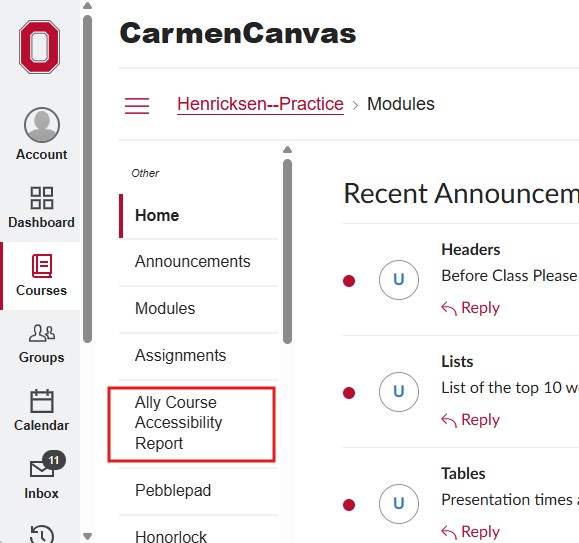
When the analysis is completed, you can review the accessibility report by clicking Ally Course Accessibility Report in your course navigation.
Ally’s course accessibility report includes Overview and Content tabs so that you can get the big picture as well as specific details about the accessibility of your digital course content.
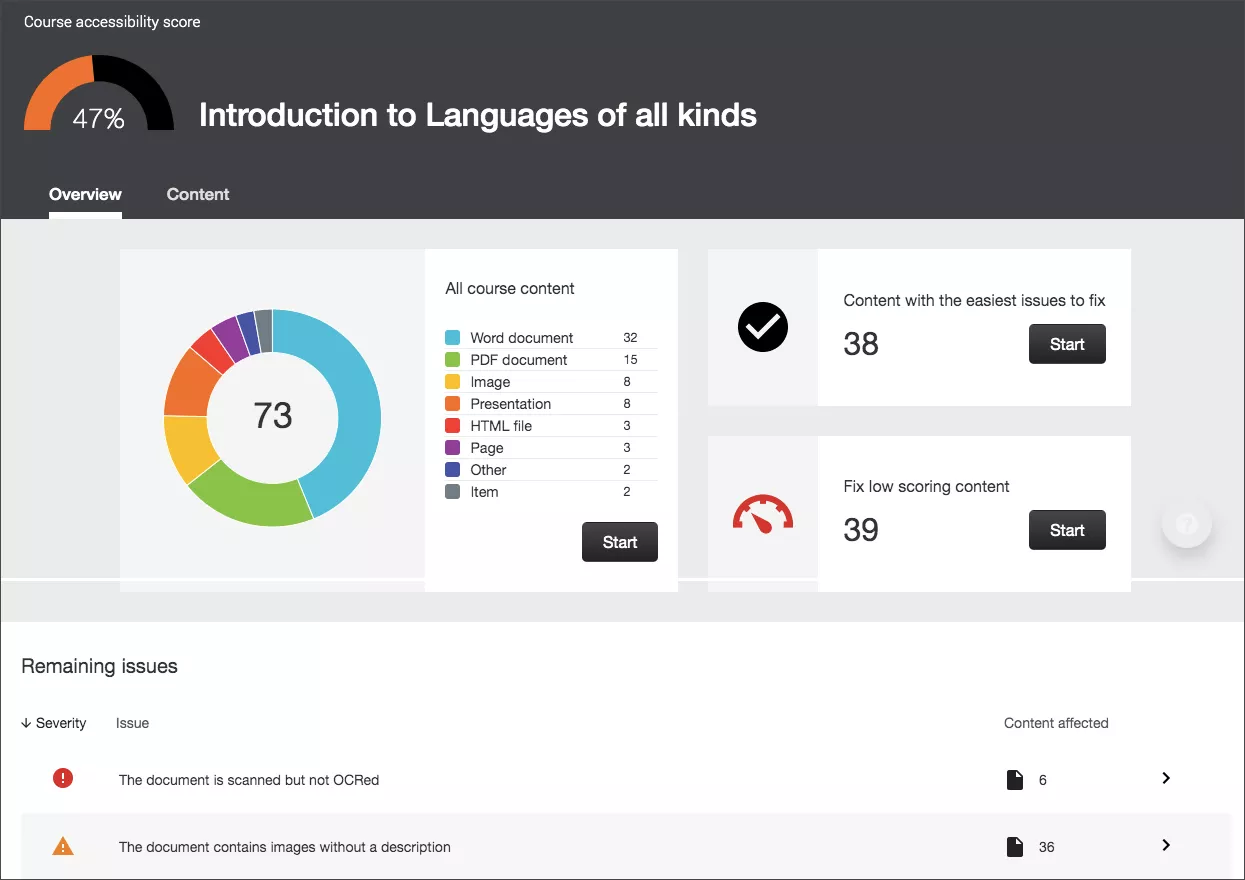
The Overview tab includes the overall accessibility score for the course and lists all the issues identified in the course, while the Content tab shows the specific content with accessibility issues. Choosing which tab to work from is up to you. Read Using Ally’s Course Accessibility Report for more details on what the report includes and how to use it as the hub for your remediation work. As you make changes to your course, the report will update automatically.
Once you click on an issue or content item to address, you will open the feedback panel to begin remediation. Ally’s feedback panel shows you a preview of the selected content as well as detailed feedback and support to help you fix the accessibility issues.
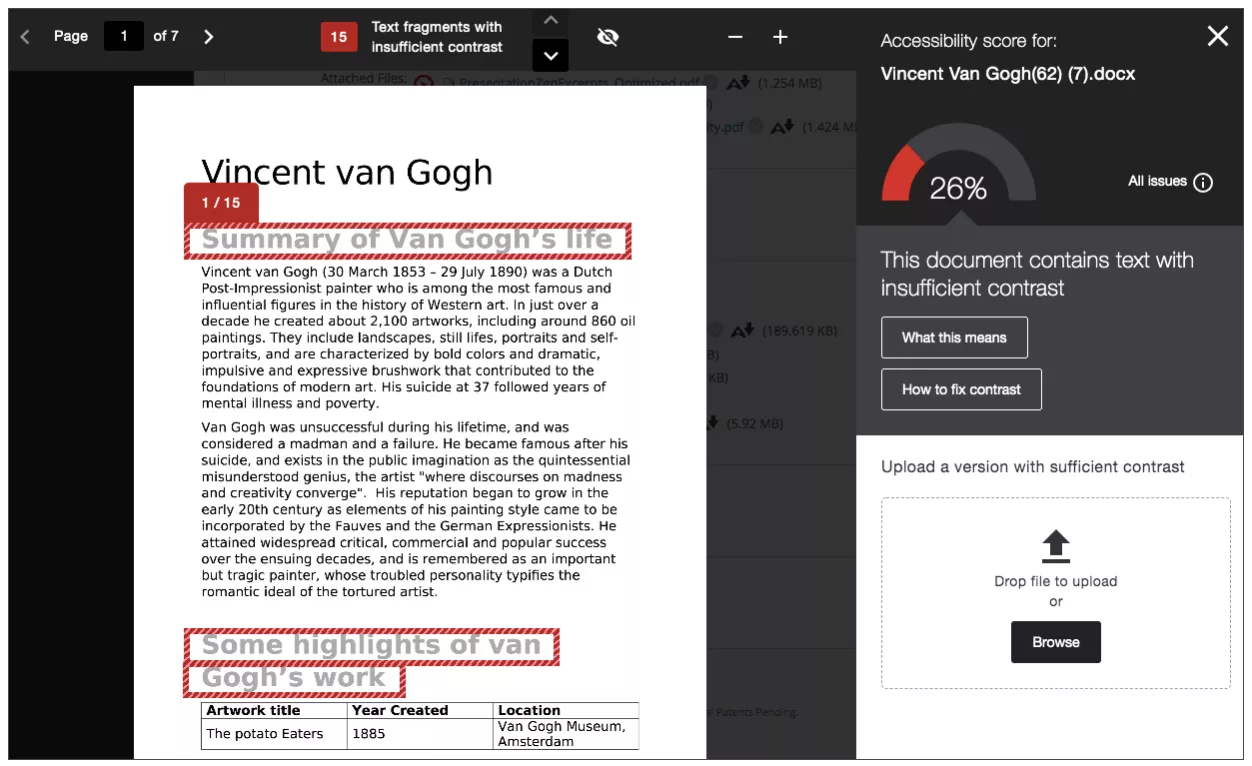
The preview highlights where specific accessibility issues can be found in the document. Highlights show every occurrence of an issue in that document and let you work through them one at a time. Some issues, like alternative text and setting a PDF’s language, can be fixed directly from within the feedback panel, but some issues will require remediation outside of Canvas. To learn more about using the feedback panel, read our Ally guides on remediating different types of course content.
- Canvas RCE Content Remediation
Limitations
Currently, Ally checks and reports on course content in these formats:
- Pages
- Announcements
- Assignment Instructions
- Discussion Board Instructions
- Quiz Instructions
It also checks and reports on the following file types:
- PDF files
- Microsoft Word files
- Microsoft PowerPoint files
- OpenOffice/LibreOffice files
- Uploaded HTML files
- Image files (JPG, JPEG, GIF, PNG, BMP, TIFF)
- YouTube videos embedded using the RCE
While quiz instructions are scanned and included in the course's accessibility report, quiz questions (for both Classic and New Quizzes) are not included in the report. Ally will give you an accessibility score for your questions when you open them in edit mode, and should be used in conjunction with the Canvas Accessibility Checker that is included in the Rich Content Editor.
In addition, video recordings created through the Canvas recorder or Mediasite, files that are password protected, unsupported file types, and external tool content will not be checked.
What do my students see?
Students will not see the accessibility indicators (dials/gauges) or the Ally Course Accessibility Report menu item in their course navigation. However, students will see a new "A icon" or "alternative formats" option. This will enable them to select file types that work best for them without instructor assistance.
Besides helping students with disabilities, alternative file formats can help English language learners and students with diverse learning preferences (such as audio content, larger font sizes, or using a mobile device for coursework). The Ally accessibility platform automatically generates alternative formats for all of your course files, and makes them available for download to you and your students.
You can turn off alternative format generation for individual content items, if you want. Your original file will not be changed by the alternative formats.