

In Canvas Quizzes, you can choose to filter IP addresses for additional security. Setting up your quiz to filter IP addresses can be used to restrict where students can take exams, ensuring that the students only take their exam on university wireless networks.
The IP addresses provided in CarmenCanvas include wireless access on all campus locations (Columbus, Lima, Mansfield, Marion, Newark, Wooster).
Unless students are using wired connections, it is not possible to restrict IP access to a particular classroom or computer lab. This option can thus increase quiz security, but it does not replace strategies to ensure enrolled students are in the expected campus location.
IP Filtering is available for both Classic Quizzes and New Quizzes.
IP Filtering in Classic Quizzes
- To enable IP Filtering in Classic Quizzes, open your quiz Edit menu.
- Navigate to the option labeled Quiz Restrictions.
- Check the box next to the option labeled Filter IP Addresses.
Click on the blue magnifying glass icon to show the university’s default IP addresses. Select the default IP address or type in a custom IP address if desired.
Image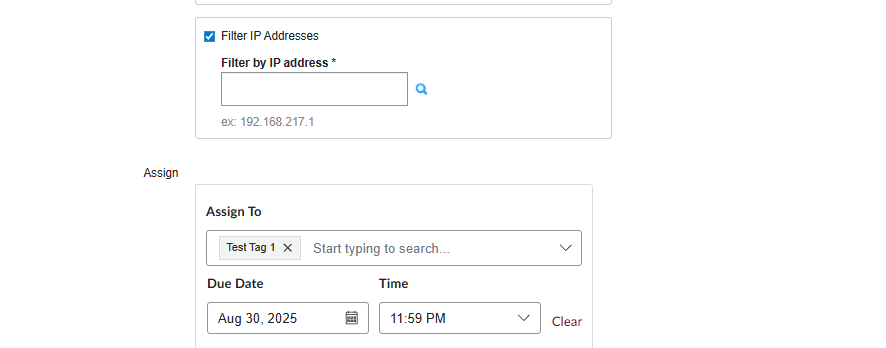
Image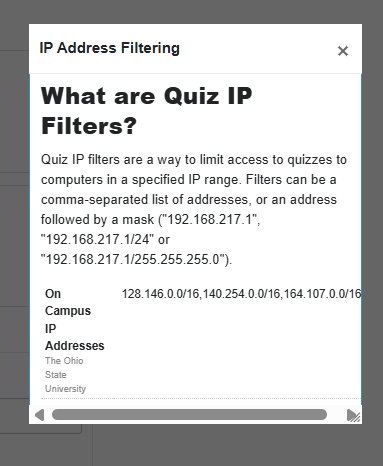
- Click “Save” at the bottom of the page to save your changes and return to your quiz page.
IP Filtering in New Quizzes
- To enable IP Filtering in New Quizzes, open your quiz in the Build menu.
Open the Settings tab and scroll down to the option labeled Filter IP Addresses. Click on the slider.
Image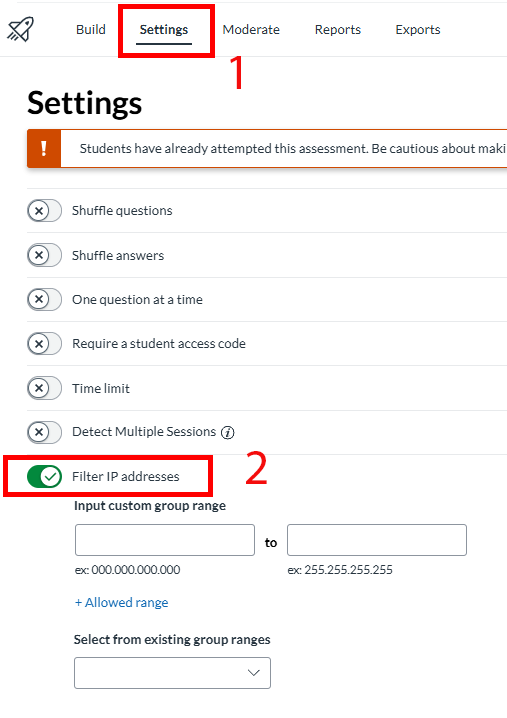
Click on the drop-down menu and select all three ranges from the preset list of on-campus IP addresses. You can also input a custom IP address if you desire.
Image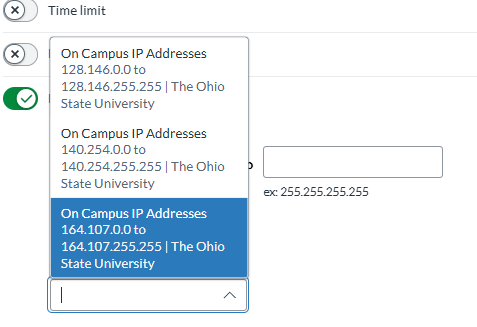
- You can input multiple ranges by clicking the “+ Allowed Range” button.
- You should see a banner appear at the top of your screen, informing you that your selection has been saved automatically.