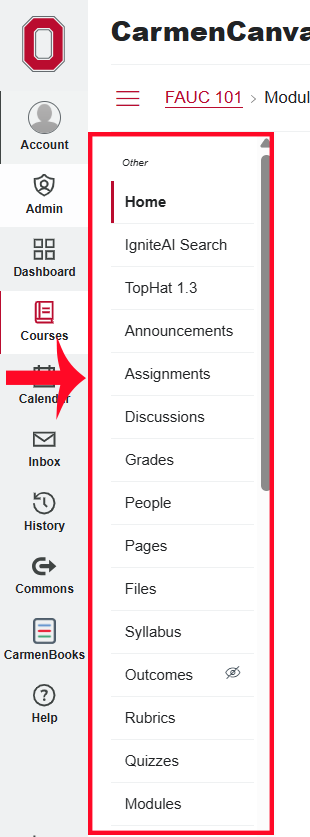
The Carmen Course Navigation panel is the list of items on the center-left side of the CarmenCanvas screen when you are in a course. Be aware that if an item is not listed within your Course Navigation, it will not be available to you or your students.
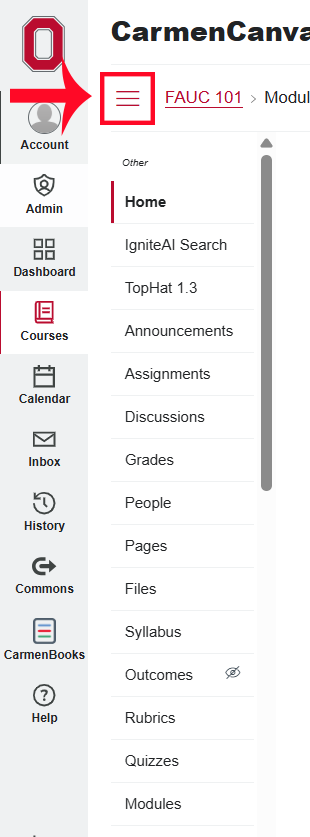
You can hide/show the Navigation panel by clicking the hamburger menu button (three-line icon) at the top, next to the course title.
Enabling or Disabling Items in the Navigation Panel
Enabling or disabling items in the course navigation will affect how your students interact with and see the content. We encourage you to disable any items you will not be using in your course to create a more streamlined experience for your students.
Some items can be active but not visible to students. This is because they have no published content or are for instructor use only. Similarly, some items may be disabled for student use but still available to instructors. Generally, menu items that are available to instructors but not students will have a closed eye icon next to the name. Use the Student View option to verify what students can and cannot access.
To enable or disable items from the Course Navigation panel, click Settings in the the bottom of the Course Navigation panel.
Image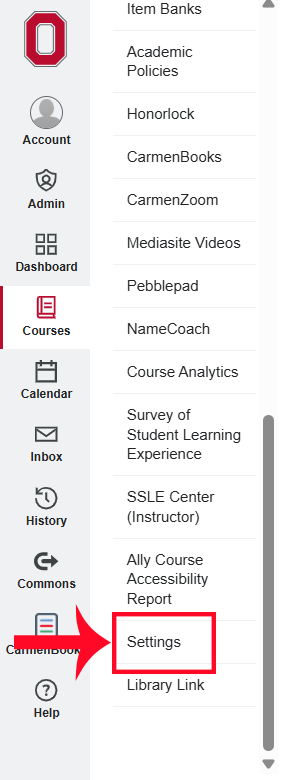
Then, click the Navigation tab.
Image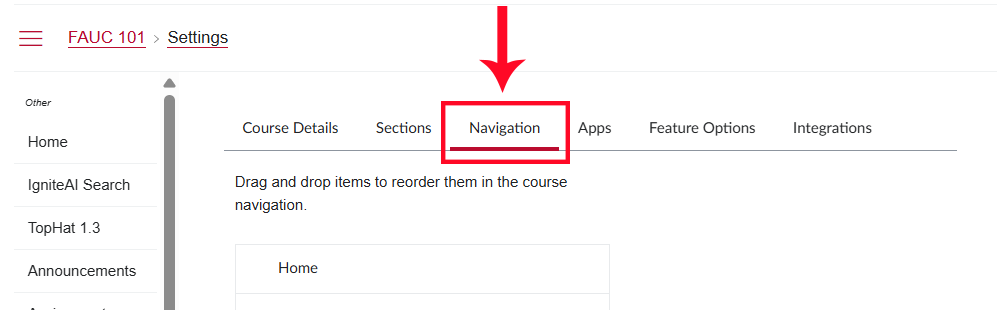
- On the Navigation page, you will see two lists. The top list contains all items which are currently enabled, while the bottom list contains all items that are disabled.
To enable an item, click the three-dot menu icon next to it and then select +Enable. Alternately, you may click and drag items to the top "enabled" list using the 8-dot grid to the left of each item.
Image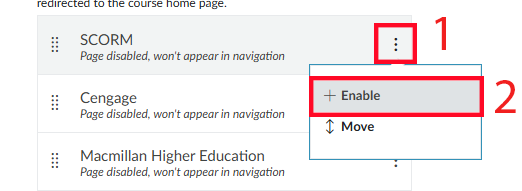 Image
Image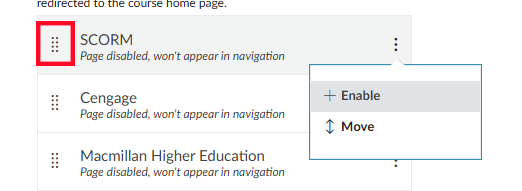
To disable items, click xDisable or drag the items to the bottom list.
Image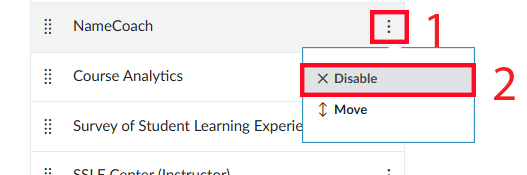
You can reorder items in the Navigation panel by dragging items in the top "enabled" list using the same methods described above. Alternately, you can click the Move button under the three-dot menu.
Image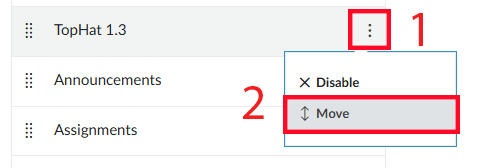
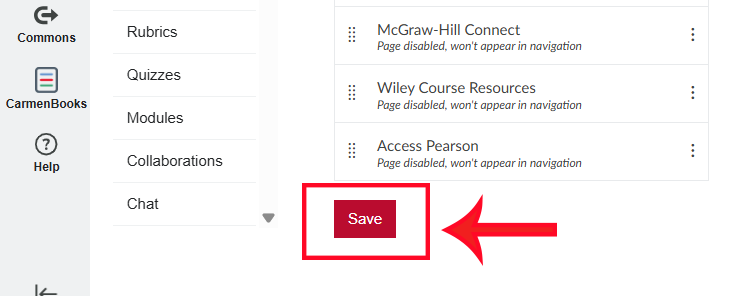
Once you are finished making changes, click the Save button at the bottom of the page.
Image