

Ace, Top Hat’s AI assistant, is now available in The Ohio State University’s Top Hat instance as the default setting.
AI-Powered Features and Resources
Ace offers several features and resources for instructors and students, including allowing instructors to enhance their lectures with built-in assessments and students to generate their own practice quizzes.
Instructor Resources
Ace provides instructors the ability to:
Generate interactive polling questions based on slide content.
Use Ace to generate interactive polls and quizzes from a single slide or collection of slides to enhance your lectures. Both multiple choice questions and open-ended discussions are currently supported, allowing you to choose the type of engagement you want in your classroom. All questions are editable, so you can to tailor them exactly to your needs.
Visit the Generate questions using slide content resource guide for more details.
Create AI-powered questions based on Top Hat pages.
Use Ace to generate questions based on surrounding content in your Top Hat pages. The Using AI-Powered Questions in Top Hat Pages guide provides an overview of how to use the feature, and answers common questions.
Use the AI-Powered Content Enhancer to improve interactivity and accessibility.
Use Ace to identify and remediate PDF content to align with WCAG guidelines, including Identifying missing alt text for images, semantic headings and subheading structures, and creating meaningful text links and page titles. Please see the Using AI-Powered Content Enhancer guide for more details.
Student Resources
If Ace has been enabled in your course, students will be able to access it from any assigned page or slide in your Top Hat course. When they first encounter Ace in one of these pages, it will be accessible at the bottom right corner of the page, indicated as Chat with Ace. It will open on the right side bar when using a web browser or on the bottom bar of the Top Hat mobile app (represented by a star icon).
Ace provides students the ability to:
Access an AI-powered study assistant.
Students can access this AI tutor directly within course pages and slides, while instructors can enable or disable the feature via Advanced Course Settings. Designed to enhance engagement and adaptive learning, Ace uses generative AI to deliver contextual, private support. Student can rate responses, delete chat history, and provide feedback, all from one easy-to-use side panel.
See Top Hat's Ace-Powered Study Assistant guide for more details.
Review and assess their learning with AI-generated practice questions.
Students can review challenging concepts from previous homework or start fresh with course review questions drawn from supported textbook pages (minimum 2,000 characters) or standalone Kaltura and Panopto embedded video content. Each session includes 10 questions (on web) and 7 questions (in mobile app) and ends with instant feedback, scoring and the option to practice again.
For more information, visit Top Hat's Ace-Powered Practice guide.
Instructions for First-Time Users
When you first encounter Ace in Top Hat, it will open in a side panel to the right of the page's content, just beneath the Present button.
To collapse or re-open the Ace side panel on later visits, click the Chat with Ace button or Ace logo at the bottom right corner of the screen.
The Ace side panel can be closed by clicking the X icon at the top right corner of the panel.
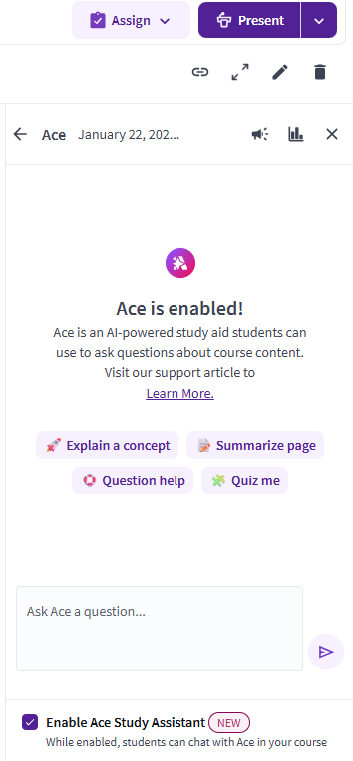
Enabling and Disabling Ace
Ace is enabled by default in your Top Hat courses. If you do not want students to use the AI assistant, you may disable it.
To disable Ace:
- Click the Course Settings menu icon.

- Look under the Advanced tab and scroll to the bottom of the list.

- Under Ace AI Features, uncheck the options you wish to disable. You can enable or disable both the Ace Study Assistant and the Ace Practice feature for students.
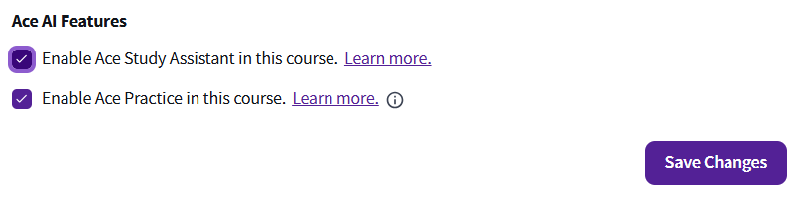
- Once you are finished making your selections, click the Save Changes button at the bottom of the page.