What is the due date for your Simple Syllabus?
According to SB 1, the public facing components of your Simple Syllabus document must be published by the first day of the semester, starting with Autumn 2026. If you are teaching a course that starts later than the first day, the public components should still be published on the first day of the semester.
What courses need to use Simple Syllabus?
Courses numbered 5999.xx or below fall under SB 1’s syllabus mandate and therefore, must use Simple Syllabus.
Courses numbered 6000 and above are not required to have public syllabi per SB 1, giving the instructors of those courses the choice to use Simple Syllabus if they wish. Your academic unit may require use of Simple Syllabus outside of the SB 1 mandate.
See Simple Syllabus at Ohio State for more detailed policy-related information.
Additional guidance for independent study (and similar) courses is in the Guidance component in Simple Syllabus.
How to edit your Simple Syllabus
The Simple Syllabus integration with Canvas allows you to edit the syllabus within your CarmenCanvas course, without the need to navigate to an outside system. If you prefer, you can work with your Simple Syllabus documents in the Simple Syllabus library. Regardless of where you edit your documents, only the content mandated by SB 1 to be public will be viewable by the public.
Open Simple Syllabus within Carmen
Navigate to your course and click on the Simple Syllabus tab in the course navigation bar. Unless it has already been moved, it will be located toward the bottom of the course navigation. Smaller screens and mobile devices may display buttons in different places.
Use Simple Syllabus outside of CarmenCanvas
Navigate to the Simple Syllabus platform. From your dashboard page, you will see cards displaying the courses for which you can manage syllabus documents. Click Edit to begin working on a document.
Editing your Simple Syllabus
This article is intended as a technical how-to guide for editing components in Simple Syllabus. For questions about SB 1 policy or departmental/college policies, please contact your academic unit. See Simple Syllabus at Ohio State for more detailed policy-related information. For technical help, please email syllabus@osu.edu.
- Who can edit the syllabus?
- From the Simple Syllabus website (syllabus.osu.edu): Anyone with an instructor role or TA role in the Registrar’s system (SIS) can edit the syllabus document for the course to which they are assigned.
- From CarmenCanvas: People with the instructor, TA or designer roles in a Carmen course will be able to edit the syllabus by clicking on the Simple Syllabus link in the course navigation. Other course participants will be able to see the syllabus only after it is published.
- Formatting content: Material that is copy-pasted into Simple Syllabus will be stripped of most formatting. Use the rich content editor buttons at the top of each content box to format your text. Content is auto-saved as you work.
- Undo/Redo Function: The undo and redo function in the editing toolbar easily reverts changes and recovers previous states of content. This can be useful when edits are made unintentionally and when trying new formatting and layouts. Important: This feature can only be used before leaving the component currently being edited or before clicking Publish. After leaving the component or clicking Publish, the changes are saved and these buttons cannot be utilized.

- Removing a component from student view: Except where called out below, leaving a component blank will remove it from the student view. If you have content in a component that you want to save for a future term but not display this term, toggle off the Visible setting in the top left to hide the content from students.
- Customized templates: Your college, department, or unit may have opted for a customized Simple Syllabus template. If so, you may see additional components on your syllabus template and some components may be pre-populated by your unit.
- Graduate courses: Instructors teaching graduate courses who choose to use Simple Syllabus may see slightly different names on the components. None of the content in Simple Syllabus documents for graduate courses (courses 6000-level or higher) will be public.
- Non-credit courses: Instructors teaching non-credit courses who choose to use Simple Syllabus may see slightly different names on the components. None of the content in Simple Syllabus documents for non-credit courses (courses numbered 1099.xx or lower) will be public.
- Guidance components: The first component you will see is called Guidance on Simple Syllabus and will have a pink background. Guidance components (always with a pink background) provide helpful context about policies or technical tips about managing content in the following component. Guidance components are not visible to students or the public. Additional guidance is in the various Guidance components in Simple Syllabus. See Simple Syllabus at Ohio State for more detailed policy-related information.
- Helpful Hints: On the right side of each component is a Helpful Hint message about how to complete the component. Depending on your screen size, you may need to click the red rectangle to expand the Helpful Hint. To see all Helpful Hints without expanding each one, zoom out on your screen. If you’re editing Simple Syllabus from within Carmen, you can collapse the course navigation bar by clicking the three-line hamburger button, which often gives your screen enough room to expand the Helpful Hints.
Public-Facing Components
Click on the accordions below to view instructions for completing each public-facing Simple Syllabus component.
For undergraduate courses (numbered 5999 and below), these components will be visible to people enrolled in the course and to the public from the Simple Syllabus Library. For pre-college courses (numbered 1099 and below) and graduate courses (numbered 6000 and above) these components will be visible only to people enrolled in the course.
Additional guidance for independent study (and similar) courses is in the Guidance components in Simple Syllabus. See Simple Syllabus at Ohio State for more detailed policy-related information.
Course Title
The first bit of content that you will see is the course subject and number, course title, and term/year. This content is pre-populated from the Registrar’s system and is not editable. The title details you see here should match the title details for the course in CarmenCanvas.

Syllabus - Instructor Information
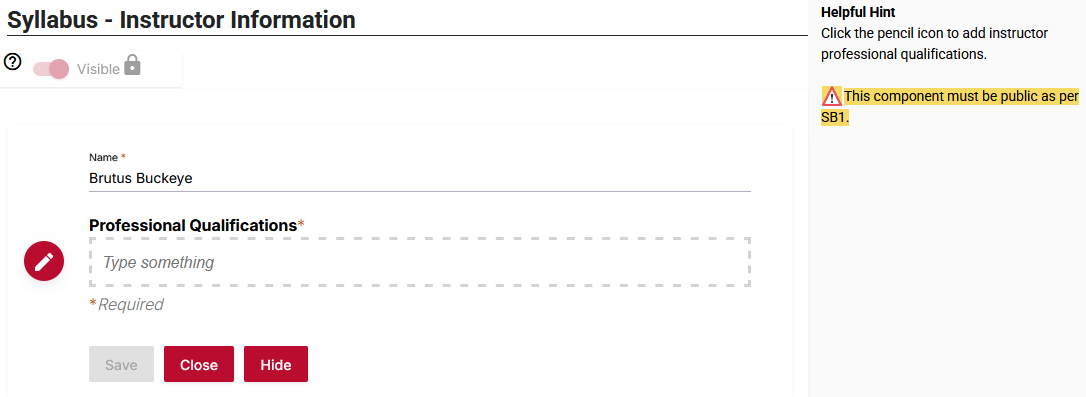
The Syllabus - Instructor Information component will pre-populate information from the Registrar's system.
- An instructor (primary or secondary) with the Print box checked will appear in this component.
- An instructor with the print box not checked will have editing access but their name will not be listed in this component.
- A TA (with or without the print box checked) will have editing access but their name will not be listed in this component.
Your preferred name will be pulled from the Registrar's system.
You must add your professional qualifications. The Guidance on Instructor Information area (pink background) shares policy information and examples of how to list your professional qualifications. Click the pencil icon to add instructor professional qualifications or to edit your name, then click Save.
- Instructors with earned hours in a graduate discipline, or instructors still in progress of a degree (such as graduate students), can list that in the Professional Qualifications box.
- Teaching assistants and additional instructors: The “Add new instructor” box can be used but will be listed publicly if included in this component. Teaching assistants and other instructional staff can be listed in a later component called Course Details - Additional Instructional Staff.
- Additional guidance is in the Guidance component in Simple Syllabus. See Simple Syllabus at Ohio State for more detailed policy-related information.
Syllabus - Required or Recommended Readings
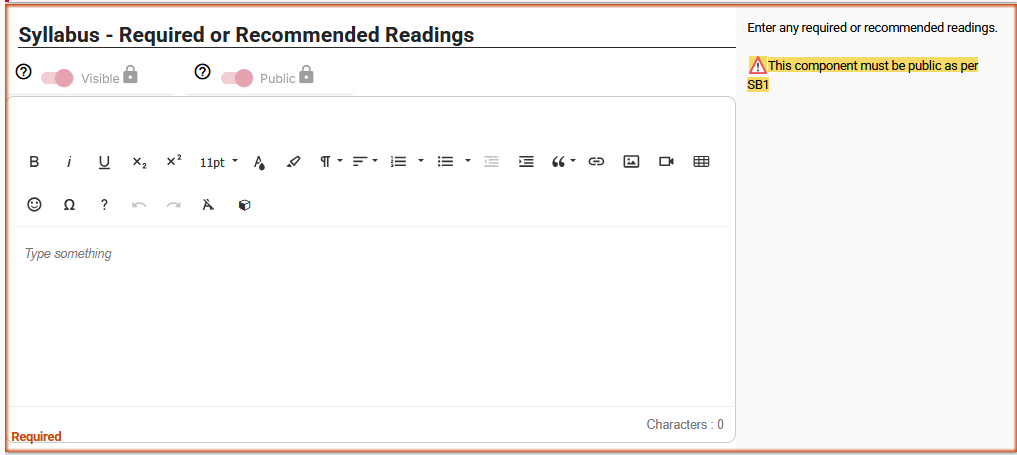
The Syllabus - Required or Recommended Readings component is where you will enter any required or recommended readings. The Guidance on Required or Recommended Readings area (pink background) shares policy information.
This list can be updated over the course of the semester as needed. If required or recommended readings are added during the course, they should be added to the Simple Syllabus at that time (remember to click Publish at the bottom of your syllabus), and Simple Syllabus will update immediately.
Any material a student is expected to engage with as part of the course is to be listed in this section.
For more details, refer to the “What needs to be included in the “Required or recommended readings and other course materials” section?” header of the Simple Syllabus FAQ on the Simple Syllabus at Ohio State article. For additional questions, consult with your academic unit leadership.
Syllabus - Course Schedule
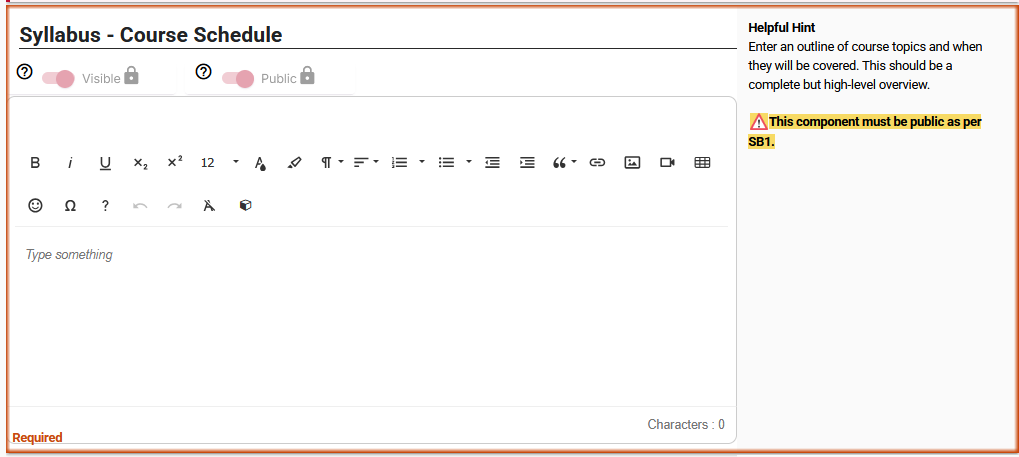
The Syllabus - Course Schedule component is where you will enter an outline of course topics and when they will be covered. This should be a complete but high-level overview. The Guidance on Public-Facing Course Schedule area (pink background) shares policy information and examples. See Simple Syllabus at Ohio State for more detailed policy-related information.
Syllabus - University Policies
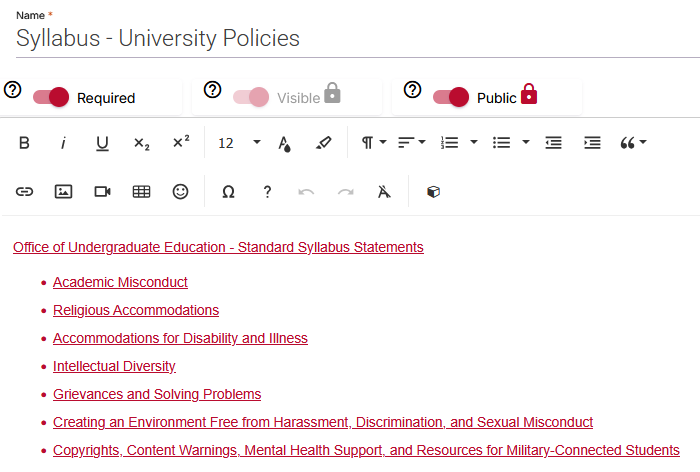
The Syllabus - University Policies component is public-facing and cannot be edited. No action is needed in this component. This component is located at the end of the template but mentioned here since it is public facing. The links redirect to the Office of Undergraduate Education’s Syllabus Policies & Statements page, which includes specific information for regional campuses under selected policies.
Next steps
One you have completed all three public-facing components, you can choose to complete any of the non-public components (see below) or to publish your syllabus after doing an accessibility check. Scroll down in this article to see information on the accessibility check and publishing your syllabus.
NOT Public-Facing Components
The following components are listed as “Private” which means they are NOT visible to the public. They are intended for the students enrolled in the course. Click on the accordions below to view instructions for completing each Course Details component. Click in each text box to begin typing or pasting in your content.
You may find more components than those listed below if your academic unit is using a customized template. You may also find some components are pre-populated with content; a course coordinator may have added this content for you. Contact your academic unit or email syllabus@osu.edu with questions.
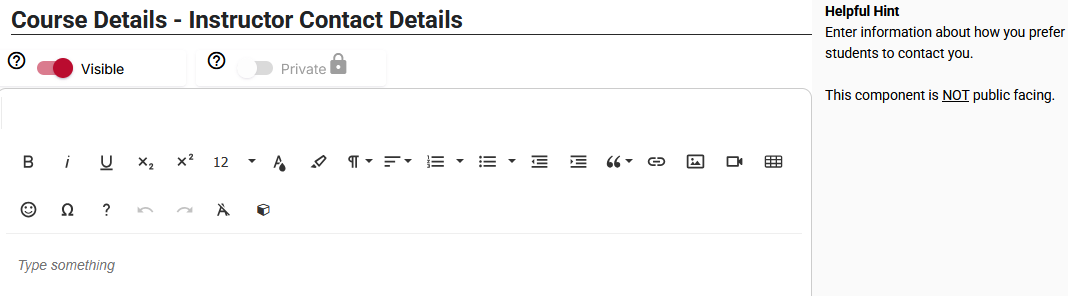
Course Details - Instructor Contact Details
Enter information about how you prefer students to contact you.
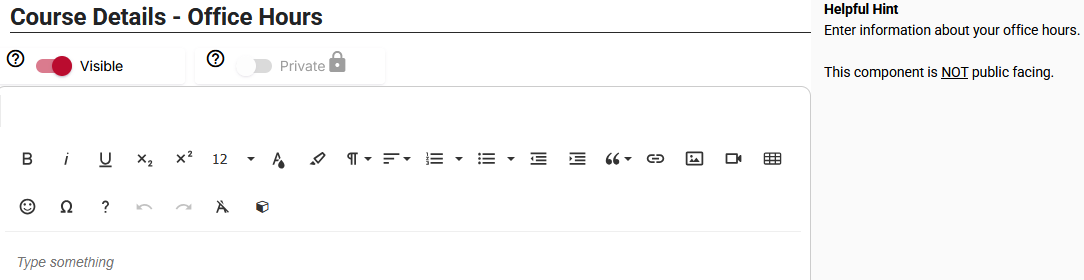
Course Details - Office Hours
Enter information about your office hours.
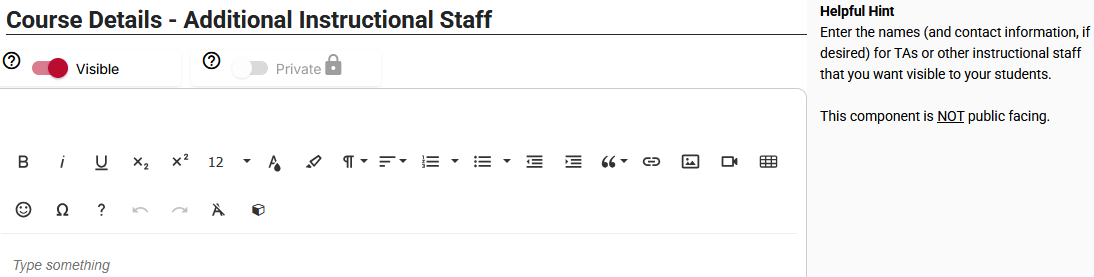
Course Details - Additional Instructional Staff
Enter the names (and contact information, if desired) for teaching assistants or other instructional staff that you want visible to your students.
Course Details - Class Meeting Details
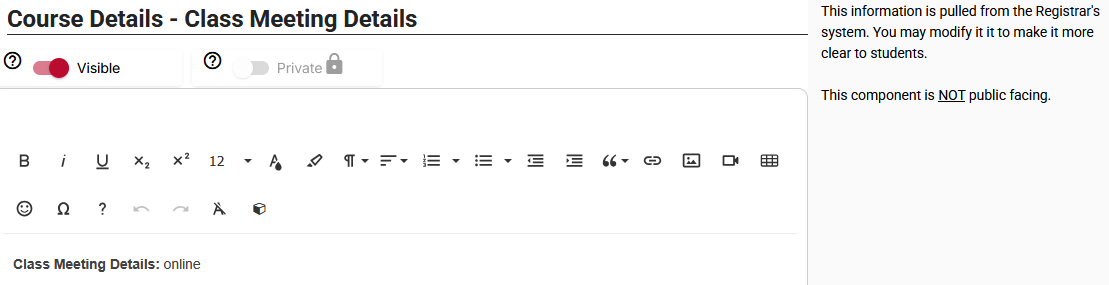
This information is pulled from the Registrar's system. You may modify it to make it more clear to students. The example below shows the word “online” as pre-populating from the Registrar’s office. We recommend keeping the phrase “Class Meeting Details:” and make any deletions, edits or additions after that point.
Course Details - Course Description
This information is pulled from the Registrar's system and cannot be edited. In the example below, the full text of the Registrar’s course description will prepopulate in the first line where it currently says “2nd GenEd Bookends.” Any prerequisites, corequisites, or concurrent courses will display in the second line, replacing the number “1201” in the example below.
- This component cannot be edited.
- If there is incorrect information in this component, please contact your Department Scheduler or the Registrar’s office.
- If you wish to add more descriptive information about your course, consider doing so in the Course Details - More About This Course component.

Course Details - More About This Course
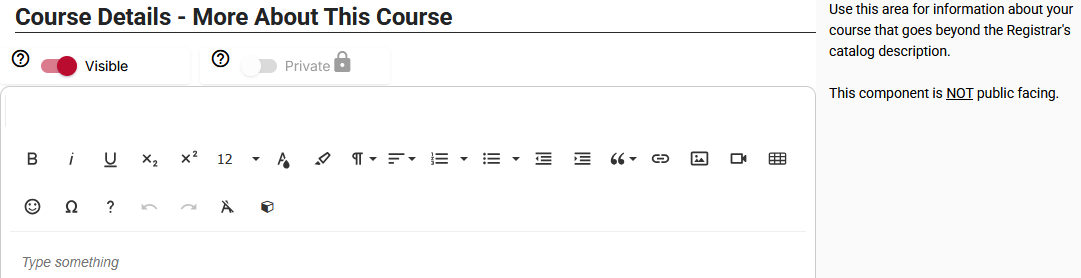
Use this area for information about your course that goes beyond the Registrar's catalog description, or any other content you wish to include.
Course Details - Course Learning Outcomes
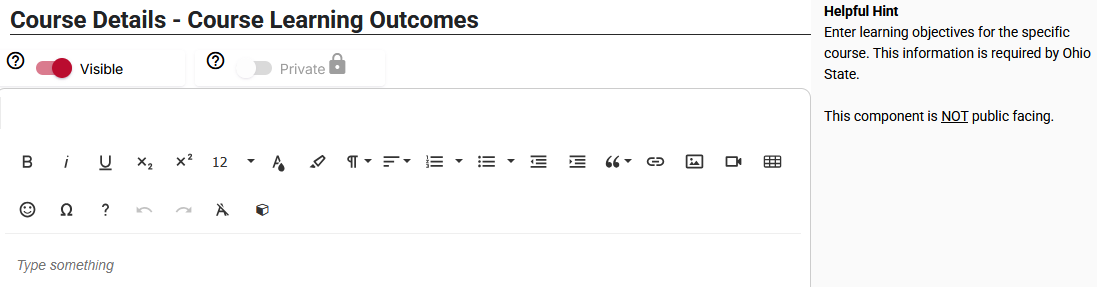
Enter learning objectives for the specific course.
Course Details - Course Supplies
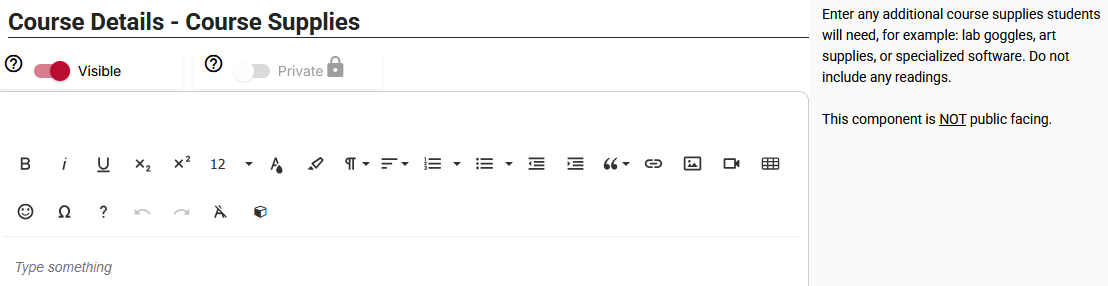
Enter any additional course supplies students will need, for example: lab goggles, art supplies, calculators, sports equipment, cooking ingredients, uniforms/scrubs, films, online videos, podcasts, or specialized software. Do not include any readings.
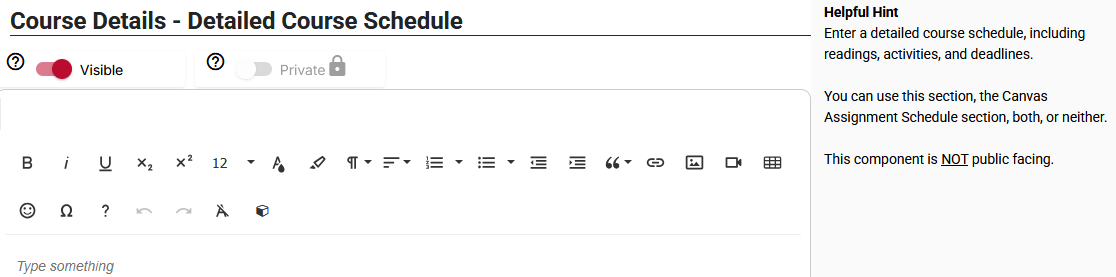
Course Details - Detailed Course Schedule
Enter a detailed course schedule, including readings, activities, and deadlines. You can use this component, the Course Details - Canvas Assignment Schedule component, both, or neither.
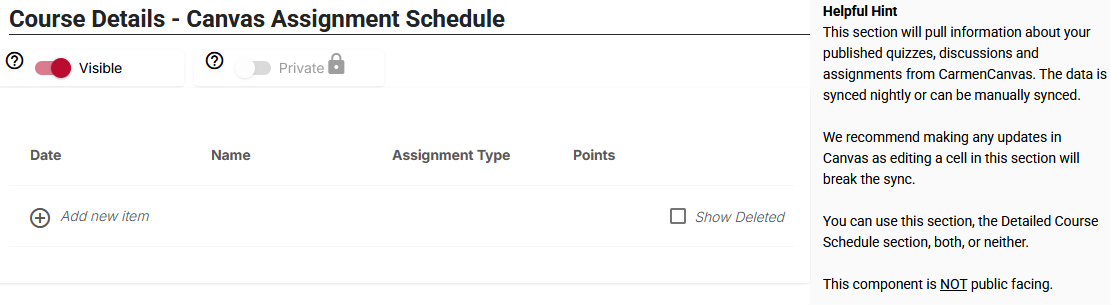
Course Details - Canvas Assignment Schedule
This component will pull information about your published quizzes, discussions and assignments from CarmenCanvas. The data is synced daily or can be manually synced using the Reset function. Changes made to assignments in Carmen will update in Simple Syllabus after the next daily sync. If you make changes to the Simple Syllabus component (such as editing the name of an assignment or adding a new assignment), those changes will not reflect in Carmen and the sync between Carmen and Simple Syllabus will be broken for this component. You can fix the connection by resetting the Simple Syllabus component.
Only assignments that are assigned to all students will sync. If an assignment is targeted to specific students, this will prevent it from appearing in the schedule component. Examples include: Discussion Checkpoints, and any assignments with different due dates than the rest of the class, such as if a student has an extended due date with Disability Services or due to illness or schedule conflicts, etc.
If you wish to disable this component due to these limitations, click the “Visible” toggle off to “Invisible” so your students will not see the component.
Unpublished assignments will not sync to the schedule, so if your Carmen assignment is not listed in Simple Syllabus, check that the assignment is published in Carmen and that it is assigned to everyone.
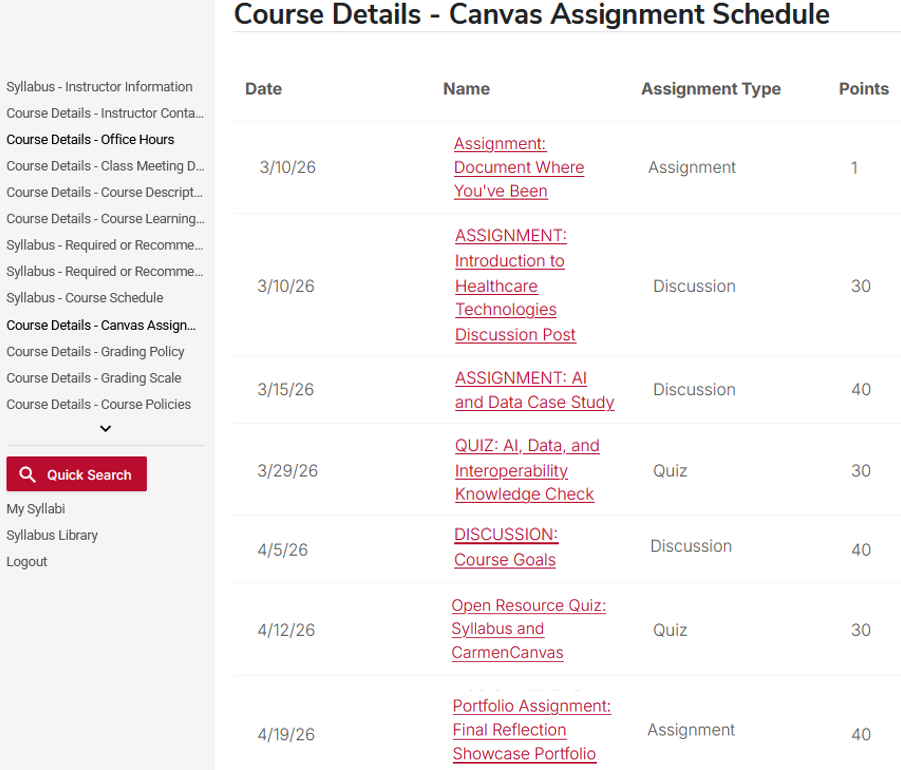
Below is an example of how this component looks when it is synced with CarmenCanvas assignments in the Preview view.
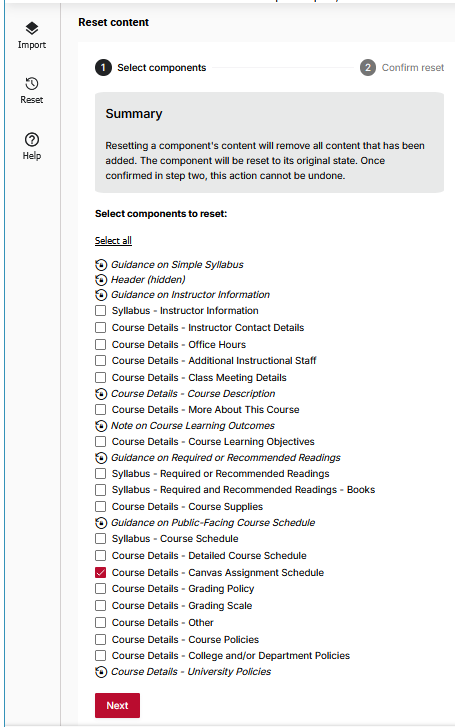
Resetting this component: To remove manual edits, you can reset the schedule component. This will remove any manual changes, including the reordering of assignments, and restore each cell's connection to CarmenCanvas. Upon clicking Reset, you will be able to select the schedule component from the list of editable components provided, then click Next. This action cannot be undone once confirmed

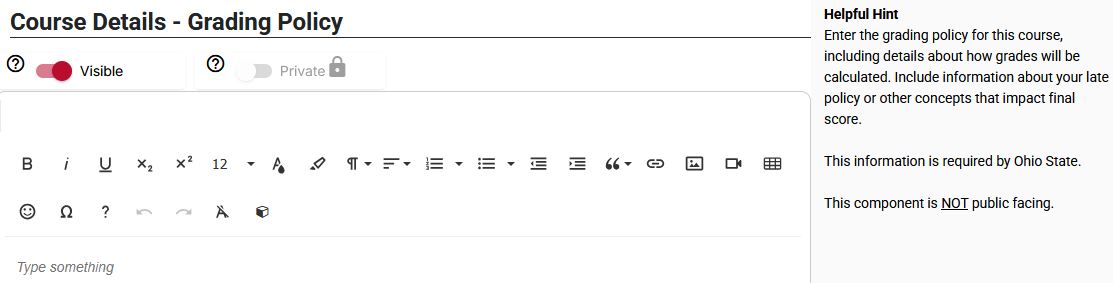
Course Details - Grading Policy
Enter the grading policy for this course, including details about how grades will be calculated. Include information about your late policy or other factors that impact final score.
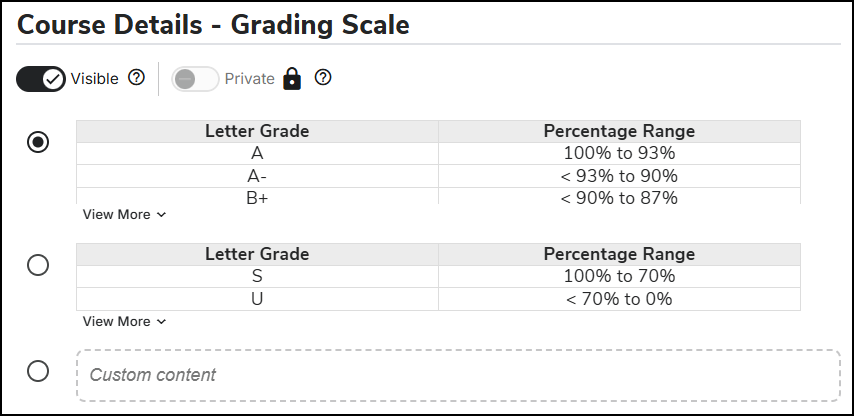
Course Details - Grading Scale
This component is to communicate your course’s grading scale. The sample grading scale provided in Simple Syllabus matches the default scale used in CarmenCanvas. The sample scale provided is not editable.
There are two options for completing this component:
- Choose the grading scale that matches the grading basis for your course by clicking the radio button on the left.
- Use the “Custom content” box to enter your department/college’s grading scale. To set custom percentage ranges, click in the dotted gray text box that says “Custom content” and start typing or paste your content. Double-click the text or hover your mouse over the text you entered to see the formatting toolbar.
View more information about creating accessible tables in Simple Syllabus.
Because this component has built-in content, it will display the default sample grading scale when in student view. To remove this component from student view, toggle off the “Visible” setting in the top left to hide the content from student view.
Reminder: Ohio State does not have a university-wide grading scale (per Faculty Rules, section 3335-8-21 “Marks”), though your department or college may have one. Additionally, Ohio State’s A-E scale described in the Faculty Rules does not contain a letter grade of "D-". The university’s official A-E scale is: "A," "A-," "B+," "B," "B-," "C+," "C," "C-," "D+," "D," "E."
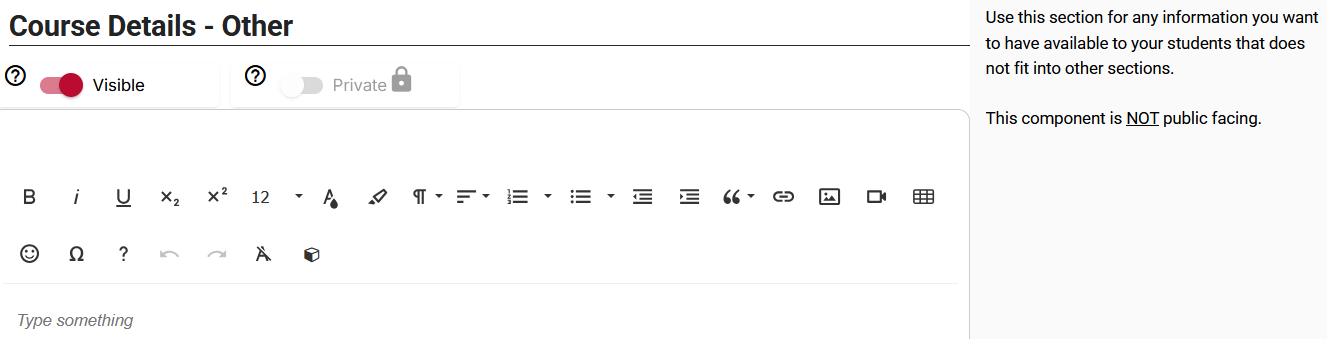
Course Details - Other
Use this component for any information you want to have available to your students that does not fit into other components.
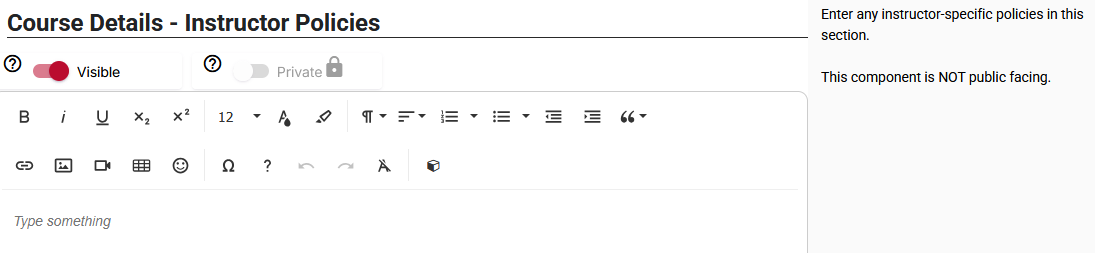
Course Details - Instructor Policies
The component relates to policies you may expect your students to follow. You may wish to review and include relevant optional syllabus statements provided by the Office of Undergraduate Education. If many people teach the same course and thus have the same course polices, this area is for policies that are unique to you.
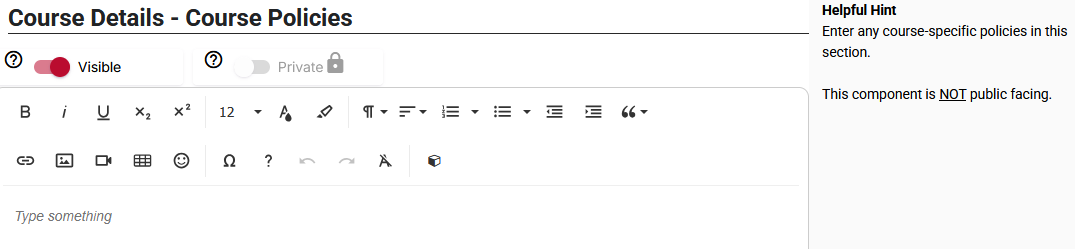
Course Details - Course Policies
The component relates to policies you may expect your students to follow. You may wish to review and include relevant optional syllabus statements provided by the Office of Undergraduate Education. If many people teach the same course and thus have the same course policies, this area may be prepopulated.
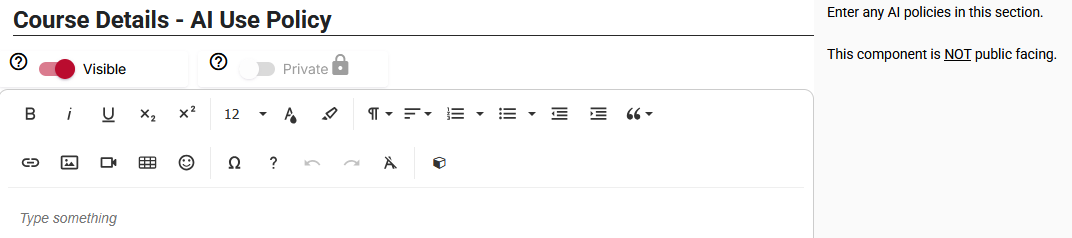
Course Details - AI Use Policy
AI policy statements help you clearly communicate how much and what kind of AI use is permitted in your course. Because permissions regarding AI can vary from course to course or even assignment to assignment, a thorough and transparent AI policy can better ensure students understand and abide by your academic integrity expectations. You have two options for completing this component:
Option 1: Choose and modify one of the AI statements provided in the Guidance on AI Use Policy area (pink background). These statements provide starting points for crafting your AI policy. They address common uses of AI in educational settings that may apply to your course. Copy and paste the text that is closest to your policy into the text box, then adjust the language to fit your course context.
Option 2: Write your own statement.
If none of the provided statements meet your needs, you can author your own following the guidance in the Guidance on AI Use Policy area (pink background).
More Resources
For further guidance drafting your AI policy and examples of finished statements, see Developing Your AI Course Policy in the Teaching and Learning Resource Center. The following articles also offer assistance in thinking through your approach to AI.
Accessibility check
Simple Syllabus includes a dedicated accessibility checker. Locate the red icon with the white outline of a person in the bottom right corner of the screen. If there is a black circle with a number next to the red icon, that is the number of accessibility issues that need corrected before you can submit the syllabus. Click the red icon to be guided through fixing the accessibility issues.

When the black circle with a number disappears and only the red circle icon remains, no accessibility issues were detected, and you can now submit the syllabus.

Submitting your syllabus
Publishing your syllabus
To publish your Simple Syllabus, click the red Publish button (bottom left) and wait for the confetti to appear in the bottom corners of the screen. If the Publish button is grayed out and not clickable, check for:
- Missing information: Ensure that any components outlined in orange (required components) have content listed, such as the instructor’s professional qualifications.
- Accessibility issues: Click the red accessibility icon in the bottom right corner to review any accessibility issues. Resolve those issues, then submit your syllabus.
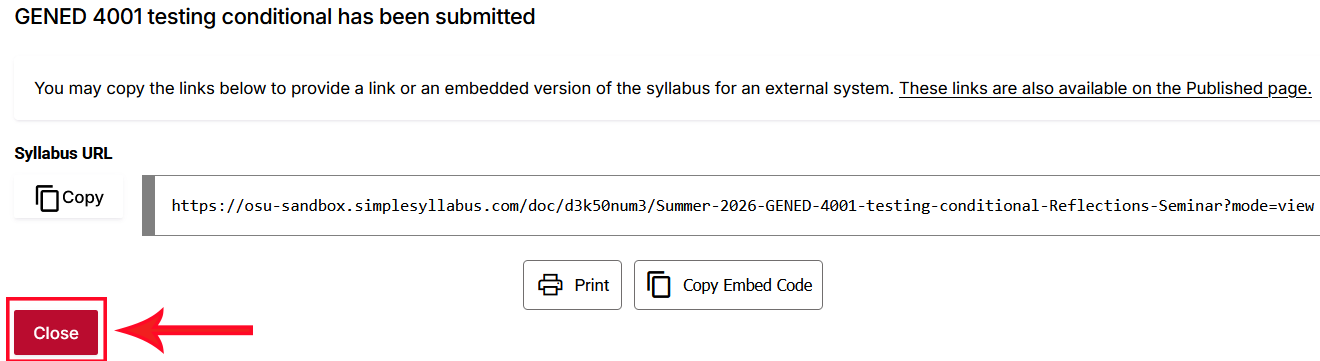
Once you click Publish and see the confetti, a pop-up box will appear stating that your syllabus has been published. No action is required in that pop-up box or with any of those links; simply click the red Close button on the left.
If you make any changes/updates you make to your syllabus after you initially published it, you need to click Publish again after making the changes so your students can see the updated content.
Leave without submitting your syllabus
Leave without publishing your syllabus
If you need to return later to finish your syllabus and are not ready to publish it, you can leave and come back later. The way you do this depends on which method you used to access your Simple Syllabus.
- If you accessed Simple Syllabus through Carmen, there is no “Close” button, but your content will auto-save. To navigate away from your syllabus, click any of the Carmen course navigation buttons on the left, such as Home, Modules, Assignments, Pages, etc. When you are ready to continue editing your syllabus, click the Simple Syllabus navigation button on the left to return to your syllabus. Your content will have been auto-saved so you can continue where you left off. Remember to click “Publish” at the bottom when you are ready for students to see your syllabus.
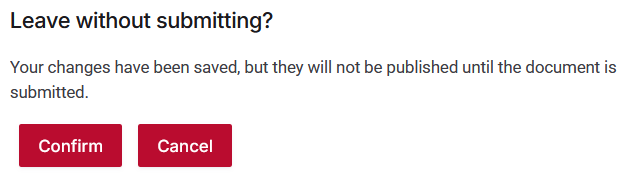
- If you access Simple Syllabus through the Simple Syllabus website (syllabus.osu.edu), click the red Close button at the bottom left. You will see a pop-up box asking you if you want to leave without submitting: “Your changes have been saved, but they will not be published until the document is submitted.” Click “Confirm.”
Preview your syllabus (student view)
To see your syllabus from a student view, click the red Preview button at the bottom of your syllabus. This will open a new browser tab and show you the syllabus from a student perspective.
Print or save your syllabus as a pdf
Once you have published your syllabus, you can print or save your syllabus document as a pdf. You can two this two ways mentioned below, but be aware that PDFS are not inherently accessible. For a version that meets most accessibility needs, please use the digital online version of your Simple Syllabus :
From Carmen, click Simple Syllabus on the left course navigation button and wait a moment for the syllabus to load on the screen. Click the dropdown arrow next to the red Edit button in the top right corner. Click Print, then you can print or save it as a pdf. If your course does not have a Print button, it’s not published. It must be published before you will see the print button.
Image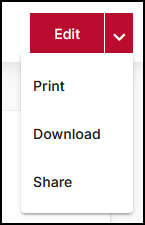
From the Simple Syllabus website (syllabus.osu.edu), click the home icon in the top left to navigate to your dashboard. Look under the “Completed” heading for your published syllabus and click “Print.” Now you can print or save as a pdf. If your course does not have a Print button, it’s not published. It must be published before you will see the print button.
Image
Share a link to your Simple Syllabus
You can share a link to your Simple Syllabus with students via email, Carmen message, or anywhere else.
First, retrieve the link from Simple Syllabus. From the Simple Syllabus tab, click on the arrow menu next to View. This should show you 3 options: Print, Download, Share. Clicking on Share will copy the URL for that syllabus to your clipboard.
Alternatively, when you publish your Simple Syllabus, when the confetti appears on the screen, you will see a pop-up box in which there is a syllabus URL. Click “copy” on the left side of the URL to copy the URL.
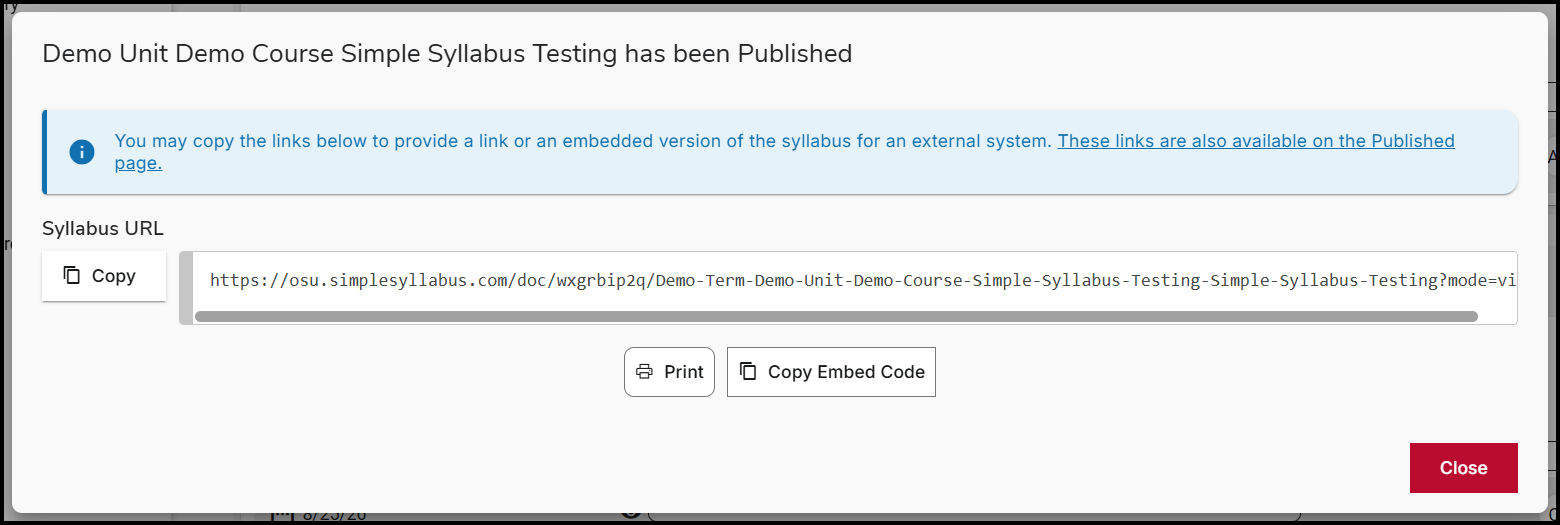
Now that you have retrieved the link from Simple Syllabus, share the link.
Sharing the Simple Syllabus link in Carmen
Simple Syllabus is already linked in your course in the course navigation bar on the left. Move it to the top of the course navigation bar for easy access for students. To put a link elsewhere in the course, copy the link from Simple Syllabus, then treat it like you would insert an external link into Carmen: Go to your Carmen page/assignment/announcement/etc., click Edit, and highlight the text you want to use for linking. Click the link icon in the toolbar and choose External Link. Paste in the link and click Done.
Note: The “insert course link” button in the rich content editor (RCE) in Carmen will not display Simple Syllabus as an option. This option only works with built-in Canvas tools. The links that are associated with external tools (which is what Simple Syllabus is) cannot be in that vendor-provided list.
Sharing the Simple Syllabus link in email or via other methods
Paste the link into your email message or other location. A shortcut would be after highlighting the linking text, click ctlr+V and it will paste the clipboard as a link.
Reuse a syllabus for next semester
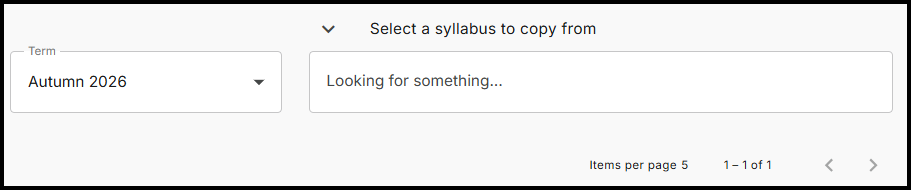
If you teach the same course next semester, when you open that next semester syllabus the content will automatically pre-populate from the previous semester’s course. You can edit the content to update it for the new semester, then Publish at the bottom. If you’d prefer to start your syllabus from a different course you previously taught, click “Replace with a different syllabus?” at the top center of your syllabus.
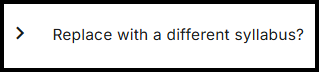
Use the Term dropdown box and the search box to find the syllabus you want to use. Use the arrows on the right to tab through the options. That will copy in that syllabus into your new semester’s syllabus where you can make edits and Publish.