

Providing a consistent set of meaningful iconography in courses throughout a student’s academic journey helps to clarify instructors’ expectations for how students should complete assignments. Developed in partnership with Ohio State Online, the Drake Institute, and the university’s Committee on Academic Misconduct (COAM), academic integrity icons and descriptions are available within Canvas Commons and can be used within your CarmenCanvas courses to clearly display assignment guidelines.
What do the icons mean?
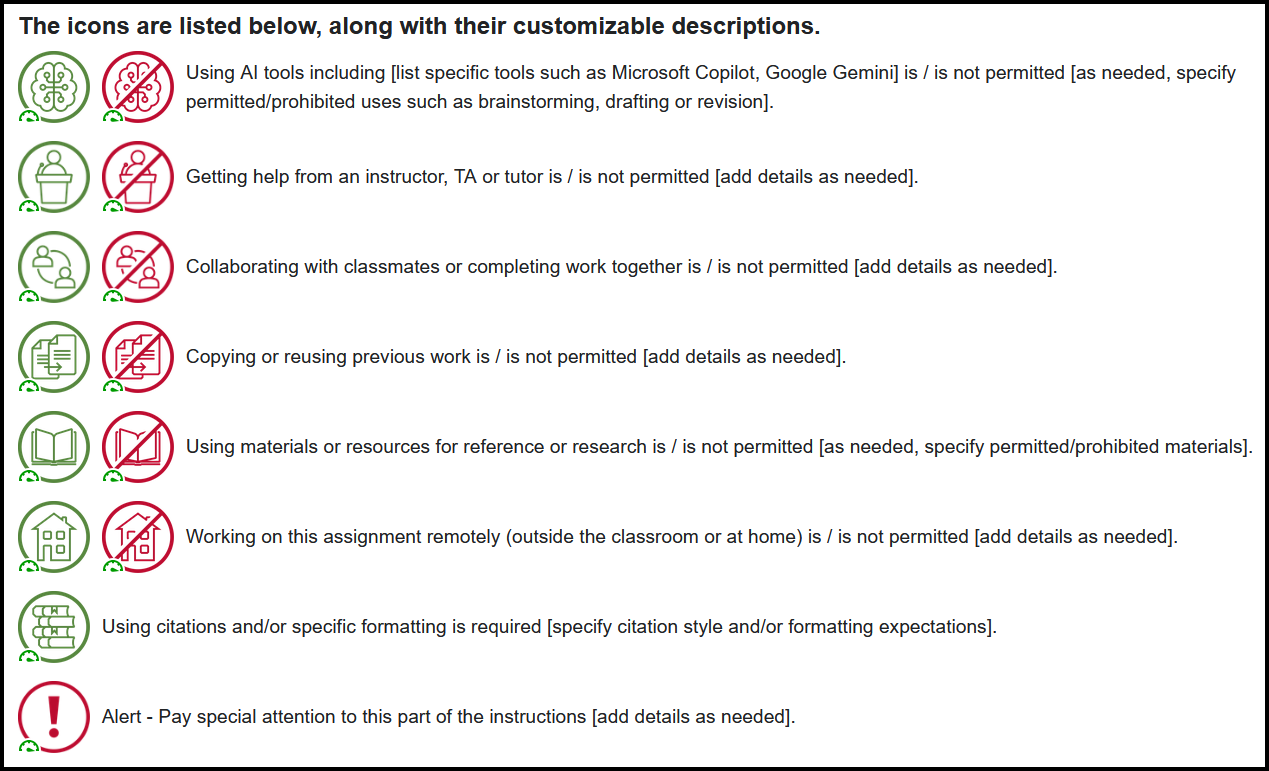
There are eight topics covered by the academic integrity icons, some with a "permitted’" and "not permitted" variation. Each icon is accompanied by a description that includes placeholder language you can adjust to align with your assignment expectations or course policies.
- Using AI tools including [list specific tools such as Microsoft Copilot, Google Gemini] is / is not permitted [as needed, specify permitted/prohibited uses such as brainstorming, drafting or revision].
- Getting help from an instructor, TA or tutor is / is not permitted [add details as needed].
- Collaborating with classmates or completing work together is / is not permitted [add details as needed].
- Copying or reusing previous work is / is not permitted [add details as needed].
- Using materials or resources for reference or research is / is not permitted [as needed, specify permitted/prohibited materials].
- Working remotely (outside the classroom or at home) is / is not permitted [add details as needed].
- Using citations and/or specific formatting is required [specify citation style and/or formatting expectations].
- Alert - Pay special attention to this part of the instructions [add details as needed].
Best practice: Pair icons with their descriptions
Each academic integrity icon provides a visual shortcut for students, but the heart of the message is the descriptive text that accompanies it. For clarity, the icons should always be paired with their descriptions. As needed, customize the icon descriptions to specify your intentions for an assignment.
Pairing the icons with their descriptions is crucial for accessibility reasons. By default, the academic integrity icons import from Commons with alternative text. If you have edited an imported icon's text description, you should also edit the image's alt text to match your changes. If you must choose between displaying only the icon or only the text description, default to text as it will be accessible to all users including those using assistive technologies.
How do I get the icons into my course?
Use Canvas Commons to import the icons into your course. Commons is a learning object repository that enables educators to find, import, and share resources. Read more about using and accessing Canvas Commons.
Step 1: From any Carmen course, click the Commons icon on the left side of your screen. It looks like the letter “C” with an arrow pointing to the right.

Step 2: Type (or copy/paste the words) academic integrity icons in the search bar.
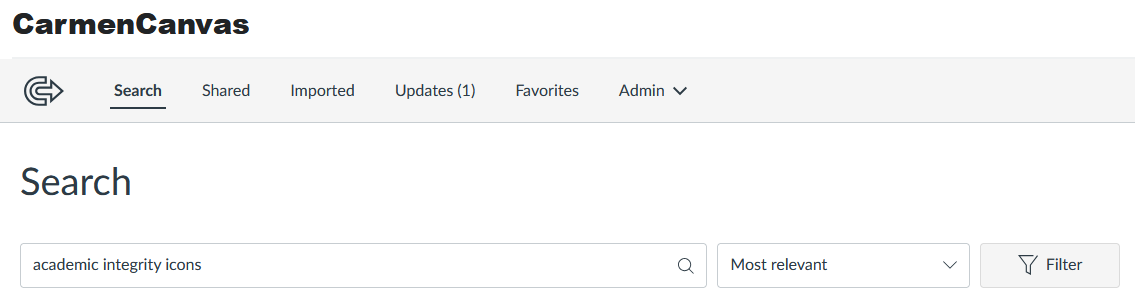
Step 3: Click any of the resources labeled Sample ___ with Academic Integrity Icons. You’ll see a sample Page, Quiz, Assignment, Discussion, and more. You only need ONE of these resources to download the icons.
Step 4: Click the blue Import/Download button on the right of the page. A fly-out pane will appear on the right side of the screen.

Step 5: Click the box next to your course (use the search bar to find the exact course if you have several courses in the list), then click the blue Import into Course button.
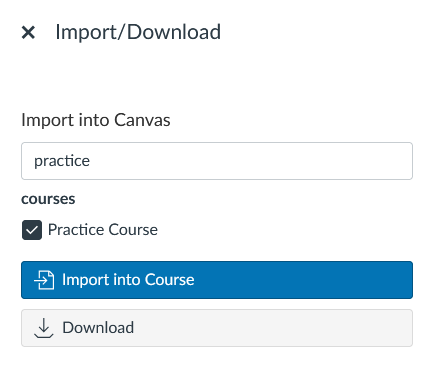
You’ll see a green banner across the top of the page that reads “You have successfully started the import! It may take a little while to see changes in your course.”

Step 6: Go to your Carmen course and click Files. You’ll see the academic integrity icons are already listed in your Files. You can now use them across your course content.
Step 7 (optional): Find the resource you imported.
- If you chose the sample Page, go to Pages and then View All Pages to see the same page.
- If you chose the sample Quiz, go to Quizzes and click on the sample Quiz.
Once you find the imported resource, you can choose to delete it—it served as the vehicle by which to deliver the icons to your Files. Alternately, you can click Edit and use the sample as the basis for a new Page, Quiz, Assignment, or other content in your course.
Additional questions and considerations
Do I have to use these icons in my course?
Using the academic integrity icons is not mandatory. However, using the icons in purposeful ways can save you time by decreasing the likelihood of potential academic misconduct cases.
When paired with their text descriptions and class discussions about academic integrity, these icons provide easily-identifiable markers to communicate (and remind students about) clear expectations for each assignment. Research suggests that transparency about expectations, tasks, and criteria for success on assignments can reduce confusion and support student learning.
How do I use the icons in my course?
Once the icons are in your course, use them anywhere across your content that you want to set expectations for academic integrity (e.g., assignment descriptions, pages that discuss assessments, quizzes, to describe overall course policies).
On the Page, Assignment, Discussion, Quiz, or other content where you will insert the icons, click Edit.
In the Rich Content Editor (the toolbar of formatting icons at the top of the large text field) click Insert, Image, Course Images.
From the slide-out box on the right, click the image you want to insert. You can also type the name of the icon in the search bar to narrow down the results. Clicking the image will insert the image into your content.
- To resize the image, click the image to make the blue border display, then click-and-drag the blue corners to resize the image.
- To move the image, click-and-drag the image to a new location in your content.
- Paste (or type) the description of the icon next to the icon. (You can copy the descriptions from this article or from the resource you imported from Commons.)
- Adjust the customized part of the text to fit the parameters of your course/assignment.
- Click Save at the bottom when you’re done editing.
Why are there multiple resources in Commons with the same icons?
There are multiple sample resources in Commons through which you can access the academic integrity icons. These include a sample Page, Quiz, Assignment, Module, and Discussion. You may choose to use one or more of these samples as a starting point for building course content—once you import the resource, you can edit it as needed.
However, you may also access a sample resource in Commons simply to import the academic integrity icons into your course. Importing any ONE of the resources labeled Sample ___ with Academic Integrity Icons will auto-save the icons in the Files tab so you can use them across your course. If using this approach, you can delete the sample resource once you confirm the icons are saved in your Files.
Replacing old icons with new icons
If you have previous versions of academic integrity icons in your course, it is important to replace them with the newest version. Using the newest version ensures students encounter visual consistency and accurate, updated descriptions across their courses.
- First, go to your Carmen course’s Files tab. Delete any old academic integrity icons. We suggest going through each folder to ensure you find them all in order to avoid accidentally using outdated icons in the future.
- Second, download the updated icons using the steps described in the How do I get the icons into my course? section. If you already downloaded the updated icons, be careful to not delete any new icons in this process.
- Third, open an Assignment (or other content) in which you want to use the icons, and click Edit. Delete the old icon and description. Then insert the new icon and description. Remember to save your updated content.
Best practices for formatting icons
When using the academic integrity icons in your course, follow these best practices from the OTDI Marketing and Communications team to ensure visual consistency and clarity.
- These academic integrity icons should only be used for course-related content.
- Use the green circle icons to represent permitted, encouraged or required activities. Use the scarlet circle with slash/ban icons to represent activities that are not permitted or discouraged.
- These icons should never be used in any color other than what is provided and should only be used on white backgrounds.
- These icons should always be displayed between 48px and 104px in size and should be sized consistently. For example, if you display one academic integrity icon on a page at 60px, display all other academic integrity icons on that page at the same 60px size.
- Each icon should have a minimum clear space between the icon and any other text or icon that is no less than 1/4 the size that the icon is displayed. For example, if the icon is displayed at 60px, the minimum clear space around the icon would be 15px.
- These icons should never be “locked up” in proximity to text or other graphics to create a logo.
Find help with the icons or academic integrity
- For technical assistance with Commons or Carmen, contact Learning Systems Support via our Contact Form, by email at carmen@osu.edu or by phone at 614-688-4357 (HELP).
- For assistance developing and refining learning activities to promote academic integrity and transparency, contact the Michael V. Drake Institute for Teaching and Learning via the Drake Institute Contact Form or by email at drakeinstitute@osu.edu.
- For assistance submitting evidence from Carmen for a COAM report, see Academic Misconduct: Gathering Results for COAM.
- For assistance with any other topics regarding academic misconduct, please contact COAM via email at COAM@osu.edu or the COAM website.