

If there are widespread service outages or access issues to CarmenCanvas, it won’t be business as usual, but there are alternatives to continue communicating with your students.
The following suggestions can help you stay in touch with your students or even continue with course work. These suggestions assume that the situation does not impact systems other than CarmenCanvas.
Getting the roster outside of CarmenCanvas
Having a list of your students that includes their name.#s will make it easier to communicate with your students outside of Canvas, no matter what method you choose to use. You can get the course roster one of two ways:
- Through the Faculty Center on Buckeyelink
- Go to the Administrative Resource Center’s How to View a Class Roster for step-by-step instructions.
- Download the Roster from your list of course on your Landing Page.
- On the My Courses page, click on the three-dot menu for any of your courses to download the roster.
Communicating via email
You can send a notification directly from Faculty Center, or you can use your choice of email client using the exported course roster.
Sending an email from Faculty Center
Scroll to the bottom of the BuckeyeLink class roster and click 'Notify all students.' This will take you to a Notification page. From here there are two ways you can proceed:
- Write your students a message in the Message Text field. Send the notification from there.
- Notice that your email is in the “To” field, and your students are listed in the BCC field.
- Copy the students’ emails from the BCC field and use that list in Outlook to email your students.
- Note that if you copy this list you will have to change the comas (“,”) to a semicolon (“;”) for Outlook to determine they are distinct emails. We recommend pasting the list into Word and doing a Find and Replace All “,” with “;” to speed up the process.
Sending an email with an exported roster
When you download the roster from the My Courses page in Aegis, you’ll get a .CSV file with a column of student usernames (name.#). Copy the information in the Username column and add @osu.edu to create a list of student email addresses. Paste the addresses into a BCC field in an email message.
Sharing course materials with students
If needed, you can still share course material with your students even during a Canvas outage. If the quantity or the size of the documents doesn’t allow you to email them to students, there are other methods you can use.
You can share the content through OneDrive, setup a Microsoft Teams channel that will also help with communication, create a OneNote Class Notebook, or you can setup a U.OSU website. Instructions on how to do each are listed below.
Sharing content through OneDrive
The steps below outline possible options for sharing course content through a OneDrive folder. See the Administrative Resource Center OneDrive guides for additional assistance.
- Log into microsoft365.osu.edu.
- Go to the OneDrive application.
- Create a new folder.
- Add your files to the folder.
- Share your folder with your students by clicking on the share option. In the share pop-up, you have two options to share.
- Enter the names, name.#s, or email addresses of all your students.
- For bulk, get the email list from the registrar or from Aegis, ensure there are semi-colons between each identity then add the list in the “add name, group or email field”.
- Your students will receive an email with the link to the folder. You can also copy the Share URL and send it via email or through other means.
- Change how the link works by clicking on the gear icon and selecting “People in The Ohio State University”.
- Copy the Share URL and share it via email or through other means.
- Enter the names, name.#s, or email addresses of all your students.
Sharing content through Teams
Create a Team (there are 4 types).
- Have the team set up to Join via link.
- Create channels if needed. For short-term use, the General channel may be all you need.
- Put any files needed by students in the Shared area of the General channel. Putting the files here means you don't need to share them with students individually.
- You may still have the files you need to share on your own computer. Just upload them to the Shared area.
- If you have files in your personal OneDrive, copy them to the Teams site.
- Extract the email addresses of students from BuckeyeLink or Manage Participants. Send information about joining to students via email. See steps above.
Sharing content through OneNote Class Notebook
The steps below outline possible options for sharing course content through a OneNote Class Notebook. See the Administrative Resource Center OneNote guides for additional assistance.
- Log into microsoft365.osu.edu Go to the OneNote application.
- Create a new Blank Notebook.
- In the Notebook you can add Sections (think of these as modules) and Pages (think of these as the content).
- Share your OneNote Class Notebook with your students by clicking on the share option. In the share pop-up, you have two options to share.
- For bulk, get the email list from the registrar or from Aegis, ensure there are semi-colons between each identity, then add the list in the “add name, group or email field”.
- Your students will receive an email with the link to the folder. You can also copy the Share URL and send it via email or through other means.
- Change how the link works by clicking on the gear icon and selecting “People in The Ohio State University”.
- Copy the Share URL and share it via email or through other means.
Sharing content through U.OSU
The steps below outline possible options for sharing course content through U.OSU.
- Sign into u.osu.edu.
- Follow the steps on Creating a Site guide to create a new site.
- You may want to set the privacy to require a password that you would then need to share with students.
- Here you can begin creating pages or posts to add to the site.
- You can also add files or other multimedia to your site.
- Go to the website’s homepage, copy the URL and then share that link with students.
Additional Considerations
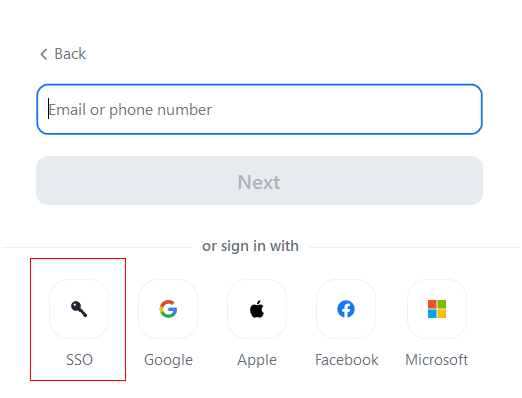
While they share a similar name and an integration, CarmenZoom is a separate service from CarmenCanvas, and is still accessible for use with classes during a Canvas outage. You can schedule a meeting at carmenzoom.osu.edu and share the meeting invitation with your students over email. Read more about scheduling meetings in our guide on Scheduled Meetings.
To make sure your class meetings are secure, select the ‘Require authentication to join’ Security option when scheduling. If you choose this option, remind students to sign in with SSO when they are prompted to sign in. See image below:
Other third-party tools that you might normally access through Canvas can potentially be accessed outside of Canvas.
- Simple Syllabus: From the SimpleSyllabus dashboard page, you will see cards displaying the courses for which you can manage syllabus documents. Click Edit to begin working on a document. Students can also access their course syllabi from the platform’s library.
- Mediasite: You can access all the Mediasite videos that you have created by going to the Mediasite website. You can share a Mediasite video through email or other means.
Some third-party tools are not supported by the entire university, but by individual departmental IT staff. The most common tools of this type are listed below:
- Echo360: If you are in a department or college that uses Echo360, you can access your Echo360 account and share videos through email or other means. Contact your unit IT for support.
- H5P: If you are in a department or college that uses H5P, you may be able to access your H5P content and share those with students through email or by adding them to other platforms. Contact your unit IT for support.
If you do not see your tool listed above, see our page on the TLRC regarding Additional Tools.